
Check and fix an entry
See how Amy got a food’s calories, and fix them if they look off.
See how Amy got there
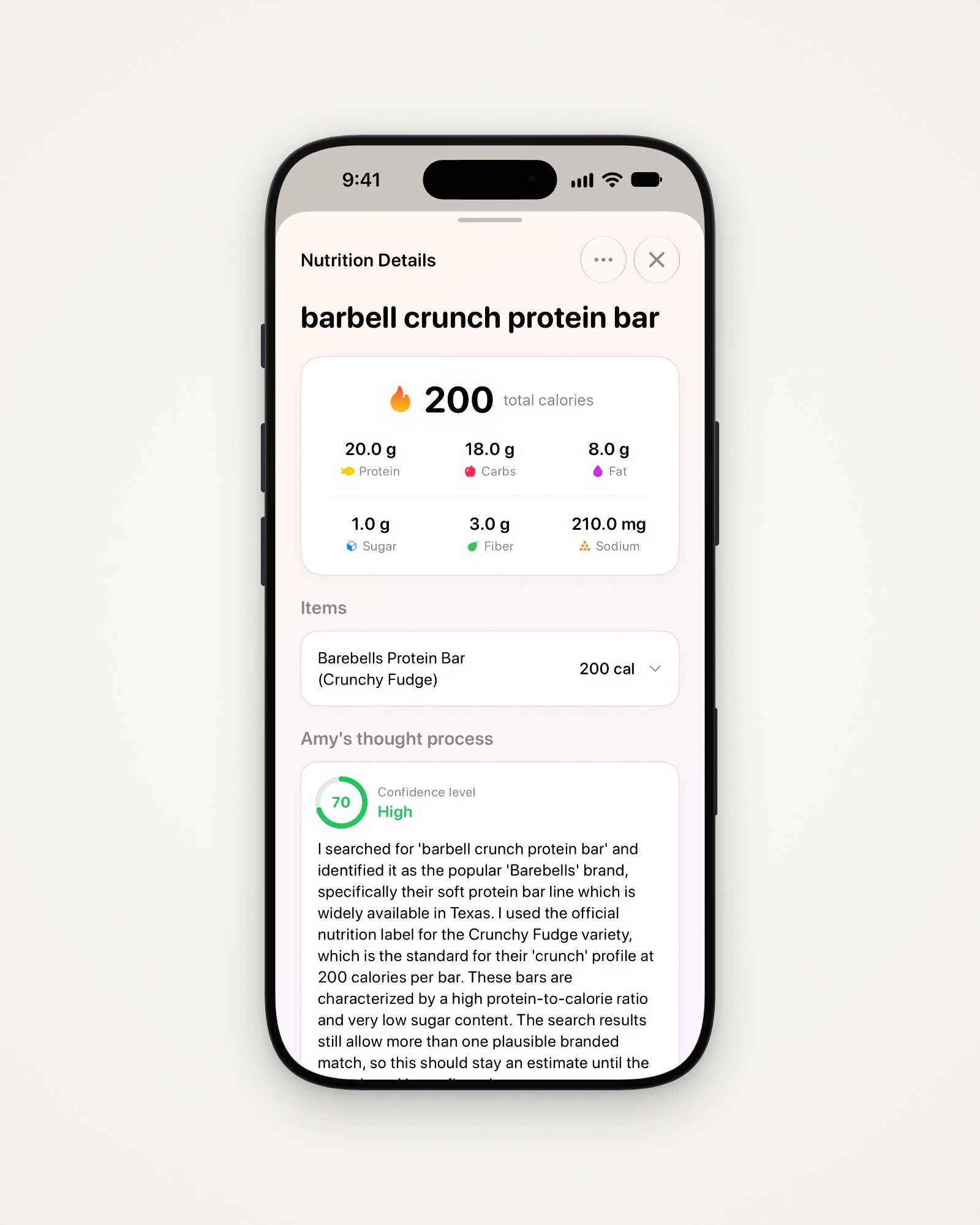
Tap a line’s calories to open Nutrition Details, which shows:
- The calories, protein, carbs and fat.
- Items: each part of the entry, with its calories.
- Amy’s thought process: what Amy matched, and its Confidence level.
- References: the sites Amy used. Tap one to open it.
Fix an entry
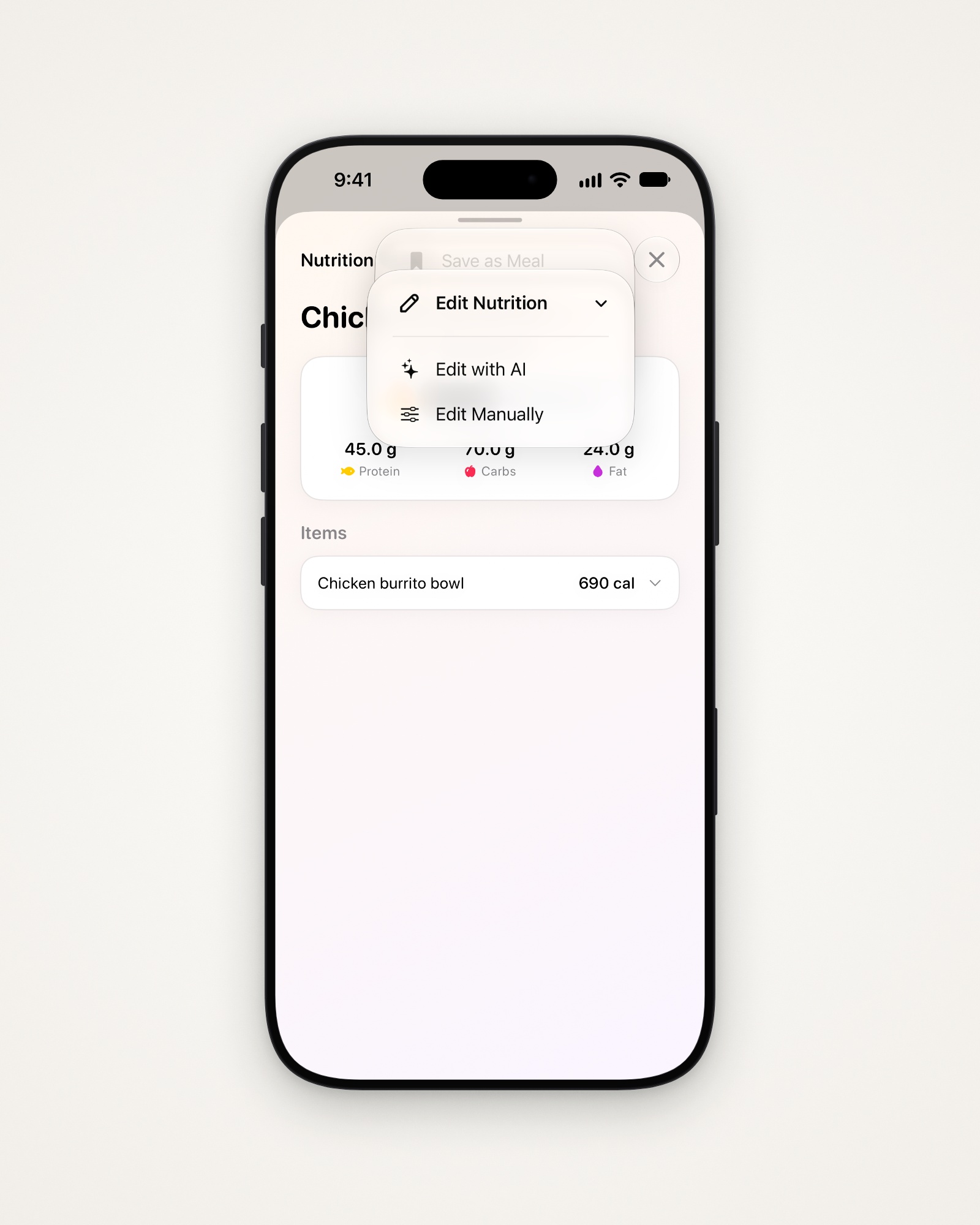
Tap ••• at the top right of Nutrition Details:
- Edit Nutrition lets you fix it with AI or by hand.
- Recalculate has Amy work it out again from scratch.
- Save as Meal keeps it as a saved meal.
Tell Amy what changed
- Tap •••, then Edit Nutrition, then Edit with AI.
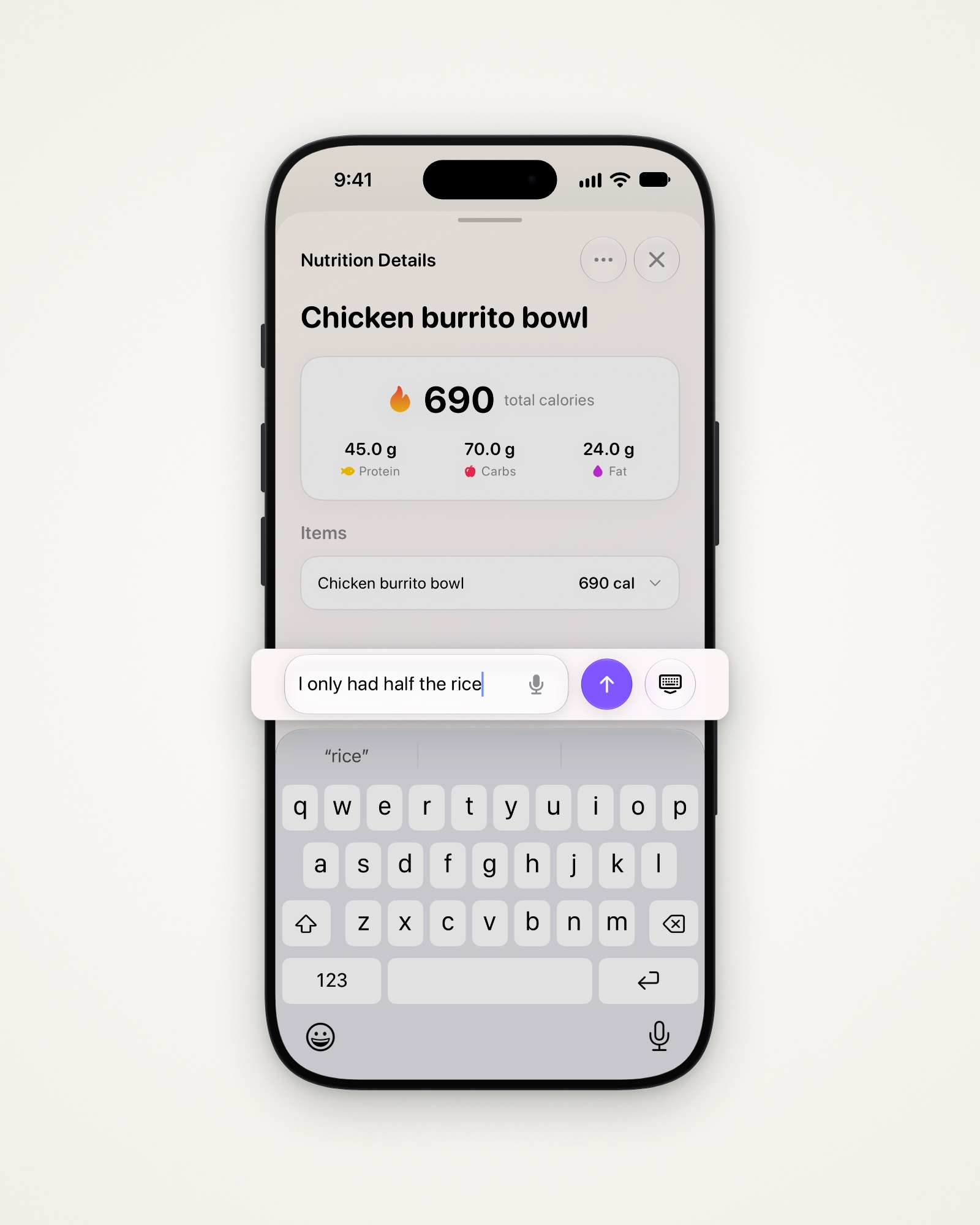
- Type what’s different, like “I only had half the rice”.
- Tap the arrow, or tap the microphone and say it instead.
- Check the new numbers, then tap Accept or Discard.
Edit the numbers yourself
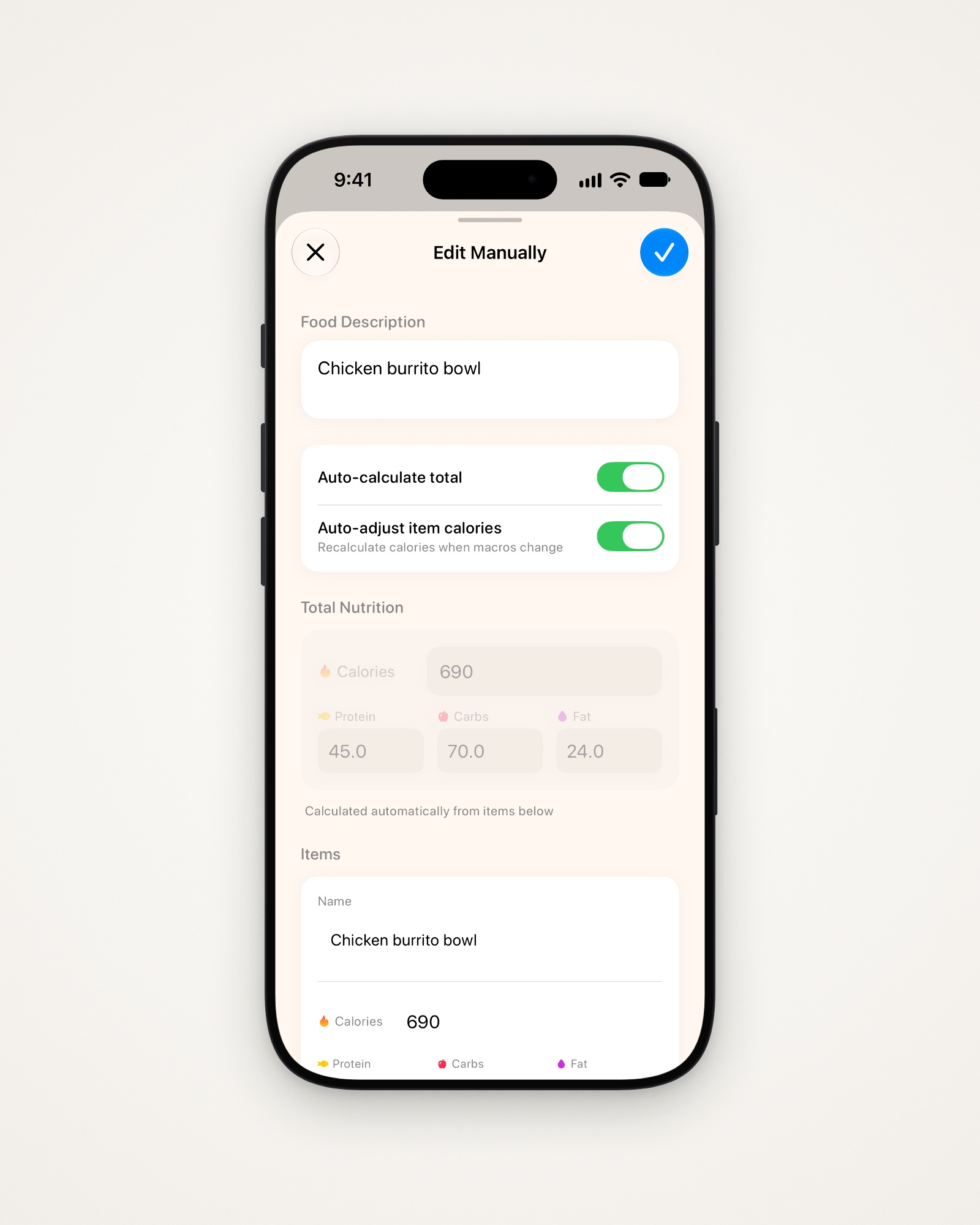
- Tap •••, then Edit Nutrition, then Edit Manually.
- Change the Food Description, or any item’s name, calories or macros.
- Tap Add Item to add a part, or Remove to take one out.
- Turn off Auto-calculate total to type the totals yourself.
- Tap ✓ at the top right to save.
Delete an entry
There’s no delete button: delete the line’s text in your note instead.
Tip: If Amy’s estimates run high or low for you, Calorie Estimate Bias leans them one way.
Last updated