
Use Amy from AI apps
Let Claude, ChatGPT or another AI app read and update your journal.
Get the steps in Amy
You sign in to Amy from the AI app, so you don’t need an API key.
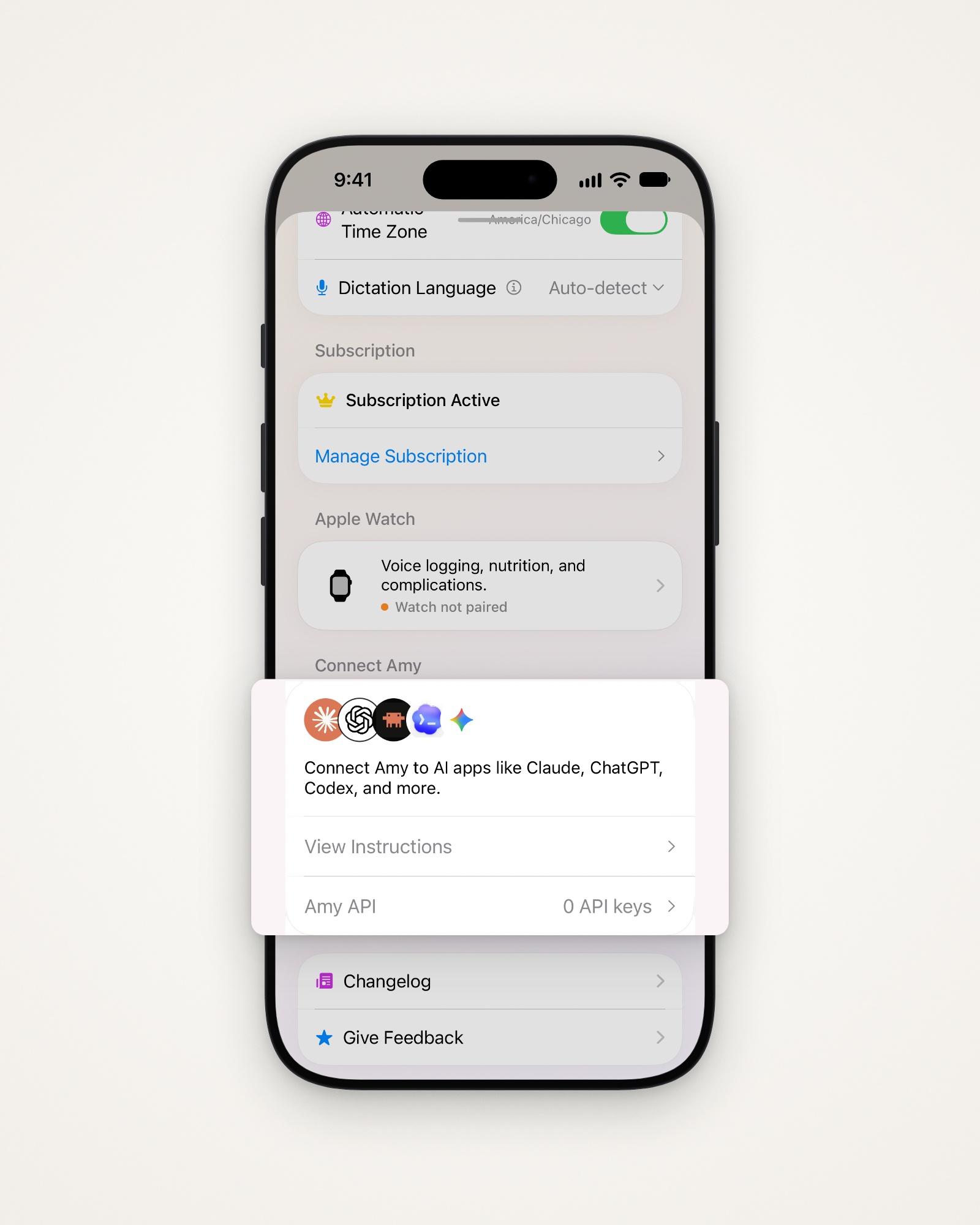
- Tap the gear at the top right to open Settings.
- Tap View Instructions under Connect Amy.
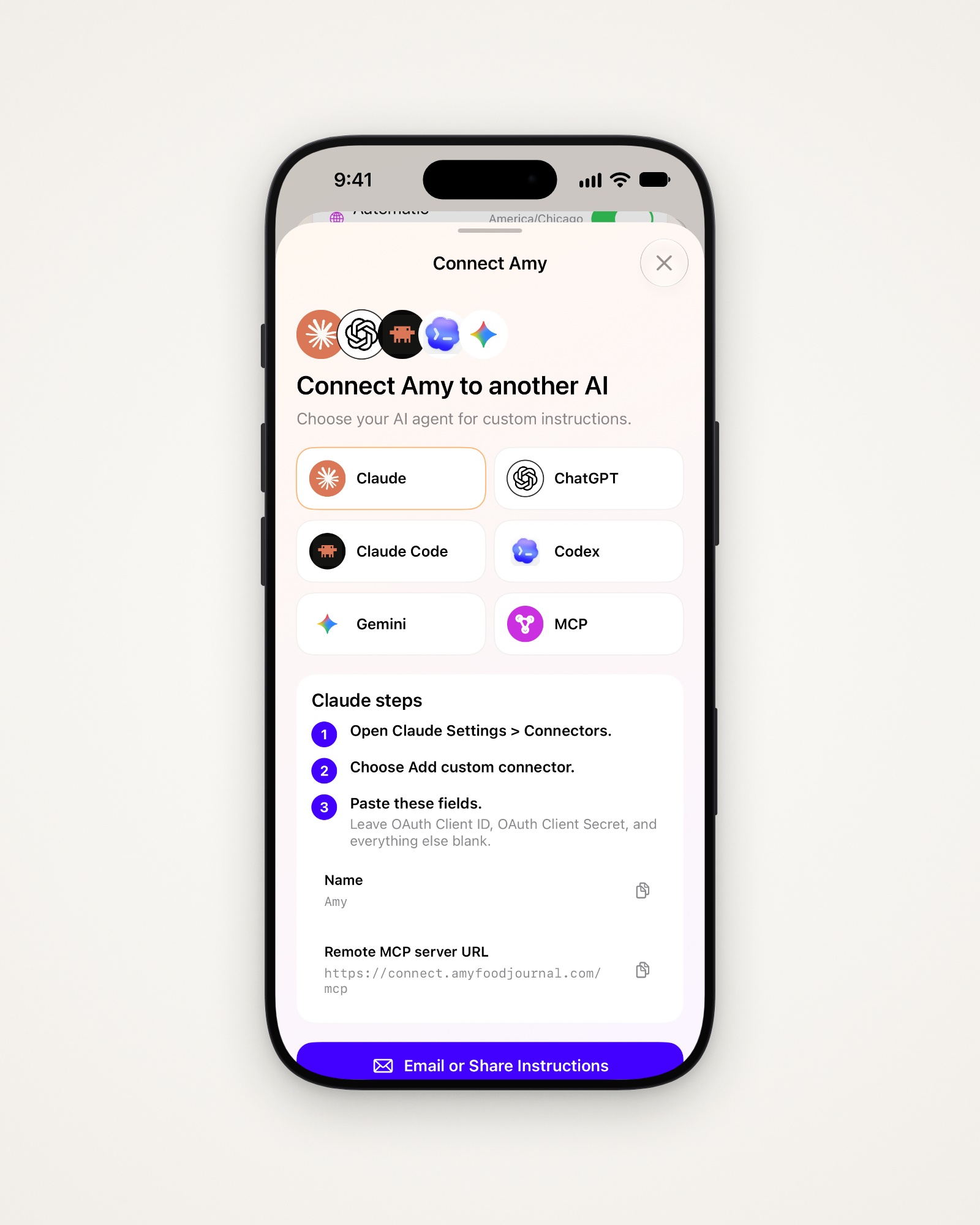
- Choose your AI app to see its steps.
- Tap Email or Share Instructions to send them to your computer.
Claude
- In Claude, open Settings > Connectors, then Add custom connector.
- Enter
Amyas the Name. - Paste
https://connect.amyfoodjournal.com/mcpas the Remote MCP server URL. - Leave everything else blank, like the OAuth fields.
ChatGPT
Amy has an official ChatGPT plugin, so there’s nothing to paste.
- In ChatGPT, open the plugin directory from the sidebar and search for Amy Food Journal.
- Choose it, tap Connect, and sign in with your Amy account.
Claude Code
Run this in your Terminal, then sign in when Claude Code connects:
claude mcp add --transport http amy https://connect.amyfoodjournal.com/mcpCodex
Run these, then sign in when your browser opens:
codex mcp add amy --url https://connect.amyfoodjournal.com/mcp --oauth-resource https://connect.amyfoodjournal.com/mcp
codex mcp login amy
Gemini and other apps
Use https://connect.amyfoodjournal.com/mcp wherever the app asks for a remote MCP server URL.
What AI apps can do
- Read your journal, and log, edit or delete food when you ask.
- They can’t wipe your history or delete your account.
API keys for your tools
- Open Settings, then Amy API, and tap +.
- Choose Read only, or Read and write to let it log food.
- Copy the key right away. Amy only shows it once.
- Tap the trash icon next to a key to revoke it.
Tip: To disconnect an AI app, remove Amy from its connectors; the Connectors page has more.
Last updated